You can use a passkey to sign in to your Microsoft personal or work/school account and many other websites, apps and services.
How do I sign in using a passkey?
To use a passkey to sign in, you first need to create and save the passkey to a device or a synced credential manager (such as Microsoft Password Manager).
Once created, whenever you sign in, your device will prompt you to sign in with its secure method, for example, face, fingerprint, or PIN.
Select an option below to get started.
What to do if you're prompted "Create a passkey to sign in?"
If you see a pop-up when you sign in asking to create or save a passkey, follow the steps to create and save the passkey.
If you don't receive a prompt, you can also manually create and save a passkey by following the steps below. This is highly recommended.
How to create and save a passkey for your Microsoft work/school account
Note: You can only create a passkey for your work/school account if supported by your organization, and your organization may limit which options you can use. Contact your organization's IT Admin for more details.
To create a passkey for your Microsoft work or school account, follow these steps on the device where you'd like to create a passkey:
-
Sign in to your work or school account Security info page at https://mysignins.microsoft.com/security-info
Sign in
-
Choose Add sign-in method.

-
Select Passkey in Microsoft Authenticator (to use Microsoft Authenticator installed on your mobile device) or Passkey (to use another device or a password manager, see below).

-
Follow the instructions on your device.
-
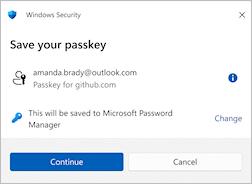
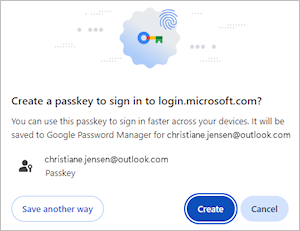
Select Continue or Create to store the passkey in the suggested location or select Change or Save another way to see alternative save location options.